How to use your Digicard
Your Digicard works with almost any modern smartphone. Just tap the card to the back of a phone and your profile opens instantly.
Hold the card to their phone
Touch your Digicard to the back of the other person's unlocked phone and hold it there for a second.
A link banner pops up
Their phone reads the chip and shows a small notification with your Digicard link.
Your profile opens
They tap the banner and your page loads in their browser — nothing to install on either phone.
Does their phone support it? Almost certainly — iPhone 7 and newer on iOS 13+, and most Android phones made since 2015. If not, they can scan the QR code on the back of your card instead.
iPhone
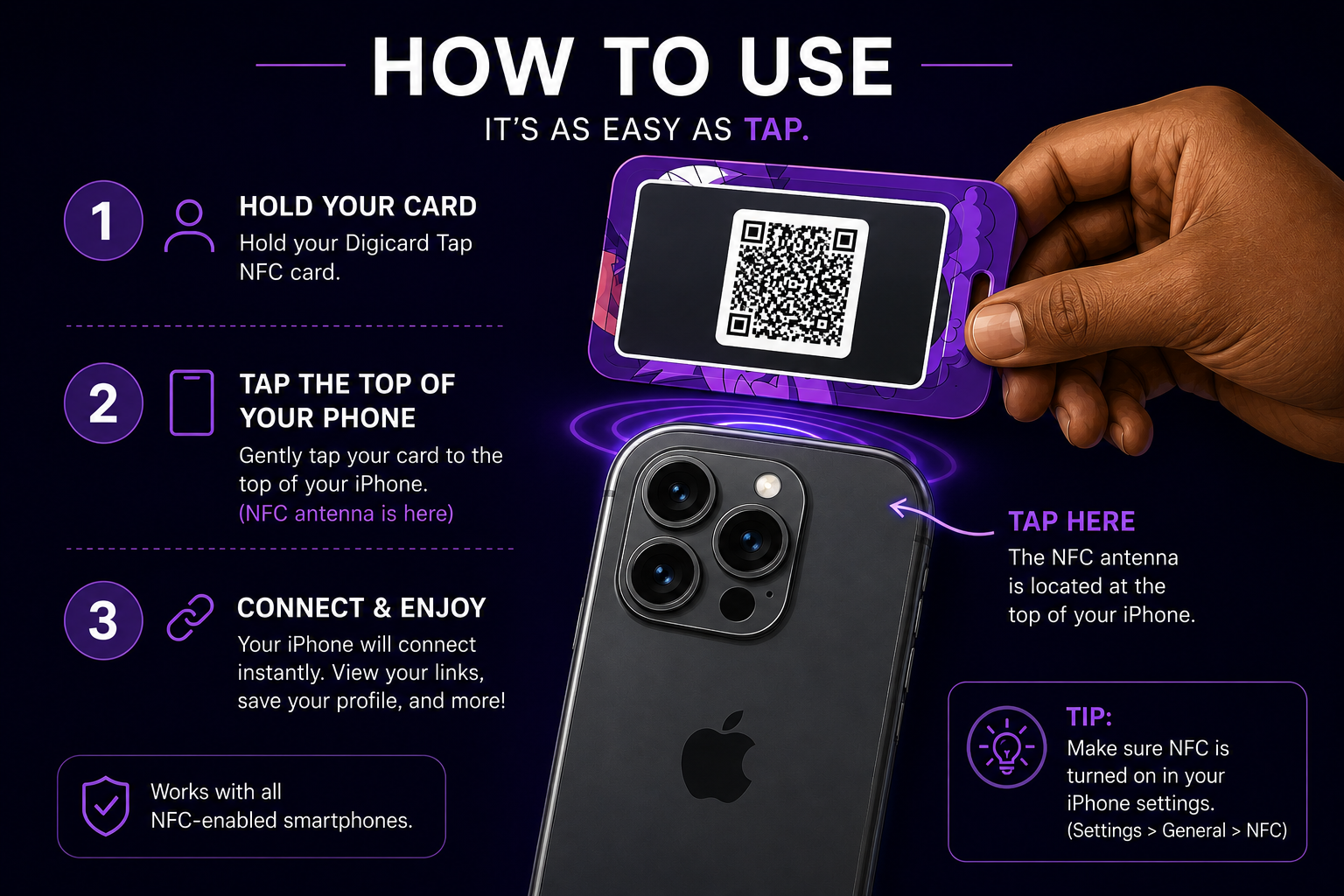
Works with iPhone 7 and newer running iOS 13+. No app needed — the NFC reader is built into the top edge of the phone.
- 1Tap the Digicard against the back of your iPhone, near the top edge (just above the Apple logo).
- 2A notification banner appears at the top of the screen — tap it.
- 3Your Digicard profile opens in Safari, ready to save or share.
Android
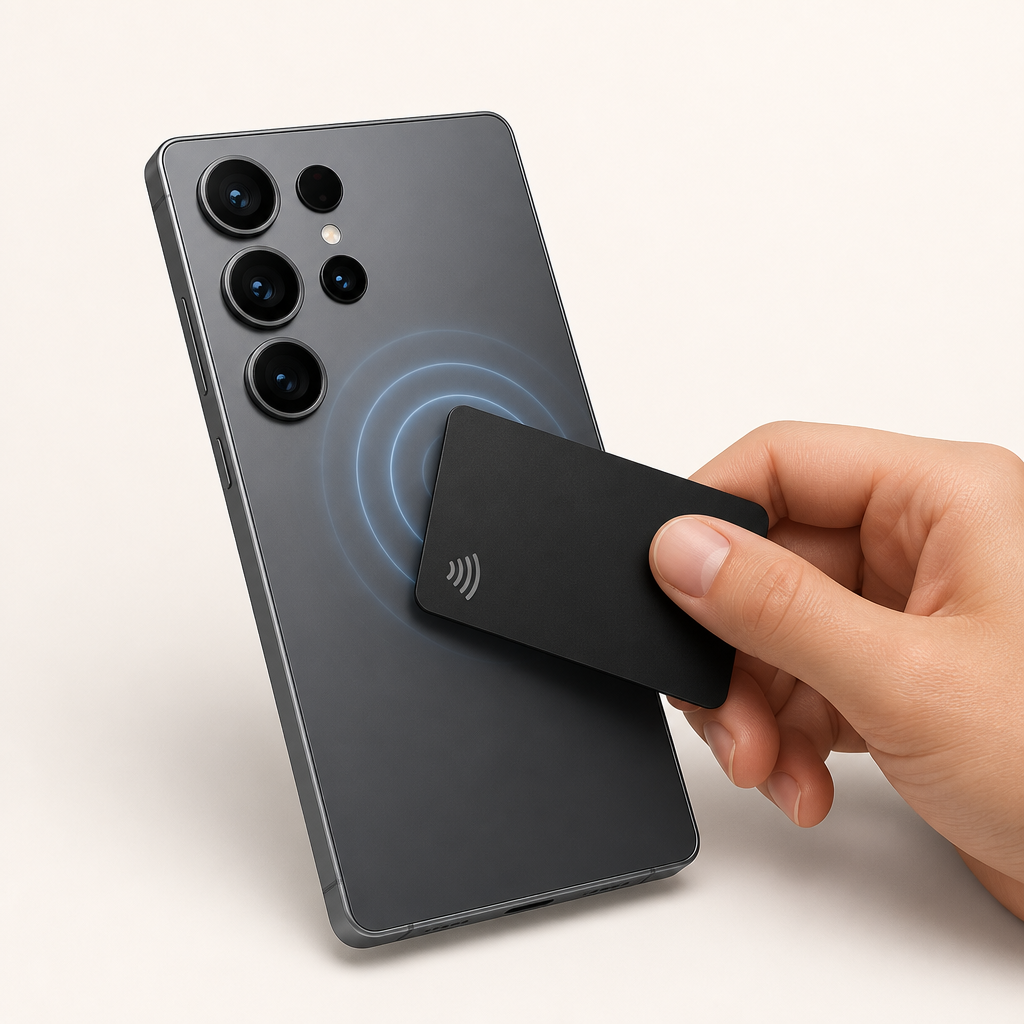
Most Android phones have had NFC for years. The reader is usually on the back, near the camera or center of the device.
- 1Unlock your Android and make sure NFC is turned on in Settings.
- 2Tap the back of the phone (near the camera or middle) against the Digicard.
- 3Your browser opens automatically to the Digicard profile.
QR code fallback
Every Digicard profile has its own QR code. If a phone doesn't support NFC, or the tap doesn't register, the other person can scan the QR code on the back of your card to open your profile just as fast.
You can also share your QR code from your dashboard anytime — print it, screenshot it, or send it in a text.
Where to find your QR code
- 1Sign in and go to your Dashboard.
- 2Open the card you want to share.
- 3Tap the QR icon to download or share it.
Tips for the best tap
- Tap gently — no need to press hard.
- Hold the card on the phone for 1–2 seconds.
- Remove thick cases or wallets for the strongest signal.
- Keep the card away from metal surfaces when tapping.
If something doesn't work
Nothing happened when I tapped
Make sure the phone is unlocked and awake, then move the card slowly around the top back of an iPhone or the center back of an Android until the banner appears. Thick cases and metal wallets block the signal.
Their phone is older
Some older or budget phones have no NFC chip. Have them scan the QR code on the back of your card, or send them your digicardtap.com link directly.
I changed my username
Cards are programmed to the exact profile URL, so an old card stops working after a username change. Your links and design can change any time for free — only a username change needs a new card.
Ready to start tapping?
Create your free Digicard profile, then add an NFC card when you're ready to share your info with a tap.